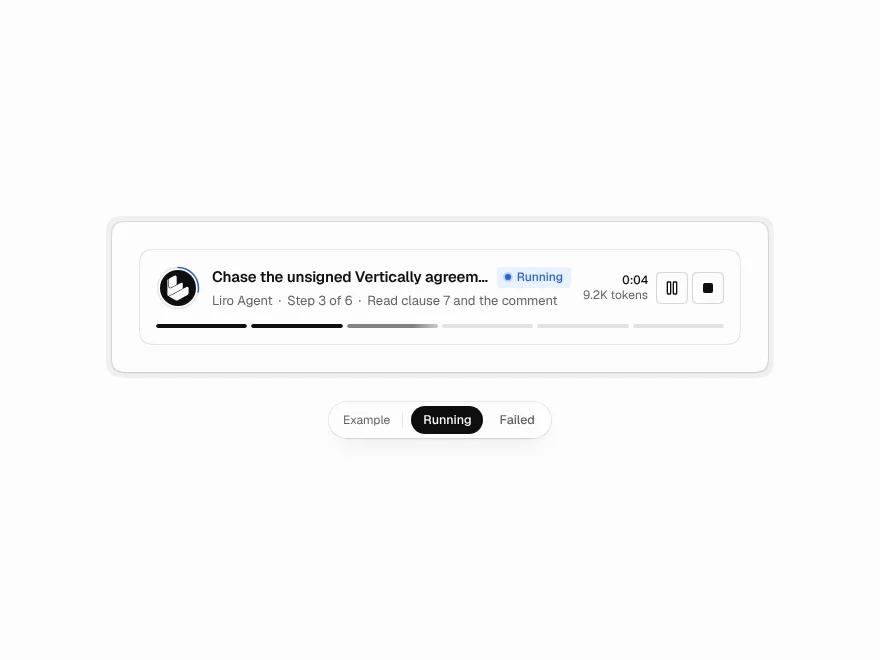
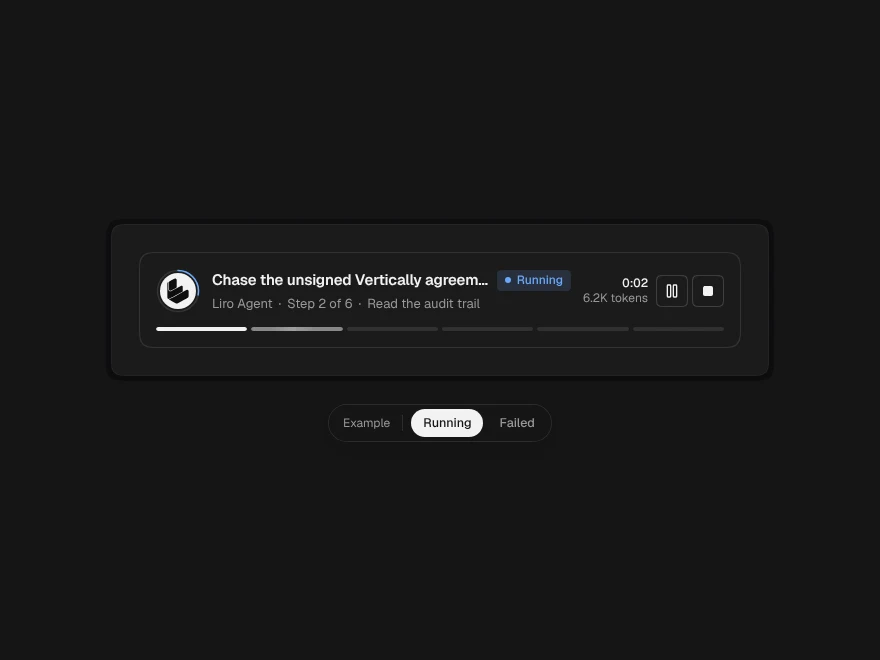
A chat shows what a model says. An agent dashboard has to show what it does: which tools it called with which inputs, what it changed, where it is waiting for a person and what went wrong. The answer to “how do I build one” is to give each of those its own place on screen, driven by one stream of updates from your agent.
The code uses Liro's Agent Workspace and the components it is made of. They are part of Liro Pro; each one is a single file you install into your project and can read and change. Every code sample on this page is typechecked against those files.
Four questions the screen answers
Everything on an agent dashboard serves one of these:
- Is it still working, and should I worry? Status, the current step and a live clock.
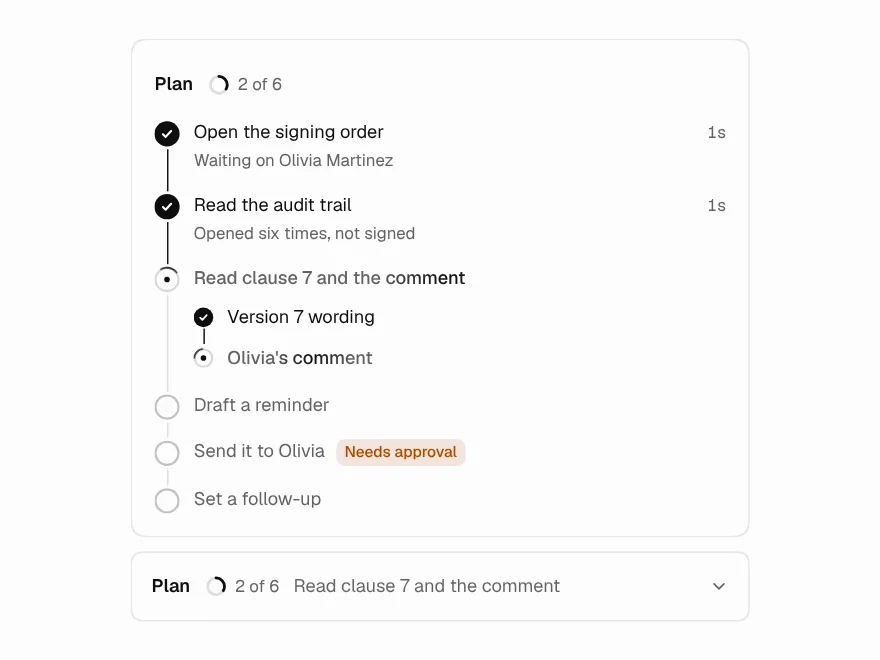
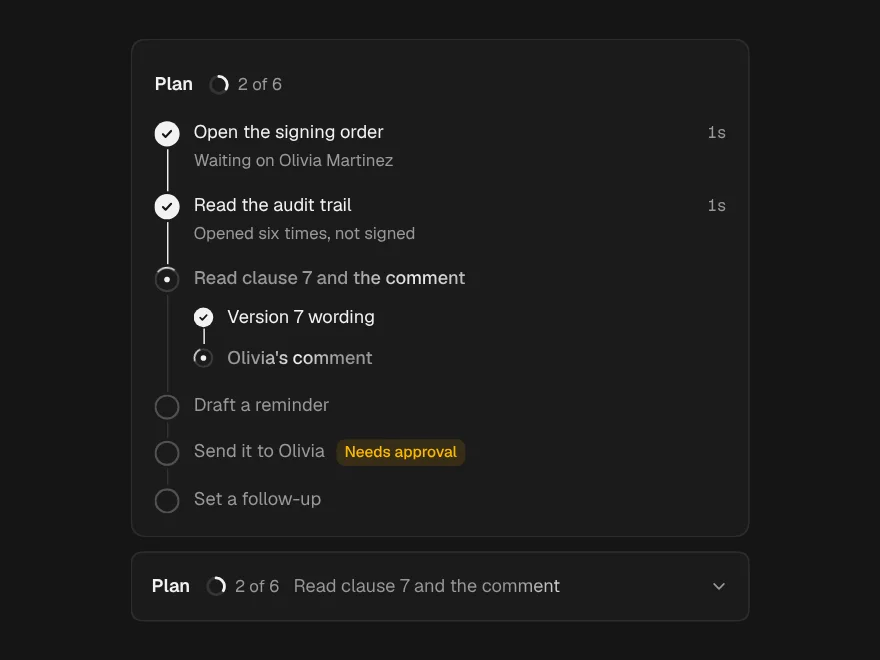
- What is it about to do? The plan, with risky steps flagged before they run, and a request for approval before anything leaves your system.
- What did it do? Every tool call with its input and output, in order.
- Can I trust it with the next task? A summary of what changed, and over time, how often runs finish, how long they take and what they cost.
The states of a run
A run is always in one of seven states, and each needs its own look: queued, running, needs approval, paused, completed, failed and stopped. Two distinctions matter more than they seem:
- Stopped is not failed. A person pressing Stop is a decision, not an error. Work that was in flight should be marked as stopped, not red.
- Progress is steps, not a percentage. “Step 3 of 6” is a fact; “47%” of an agent run is a guess. Show one segment per step.
Start with the whole screen
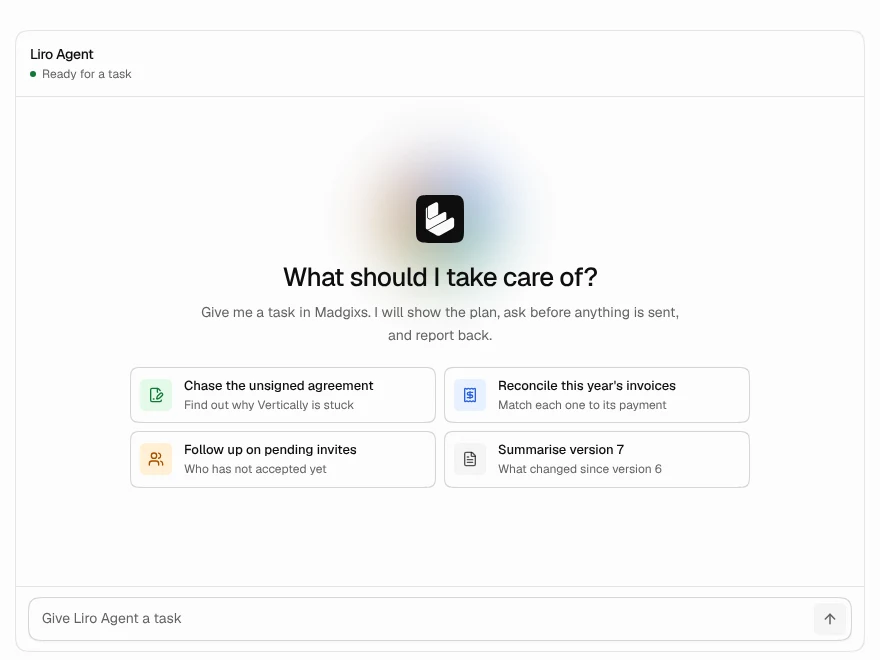
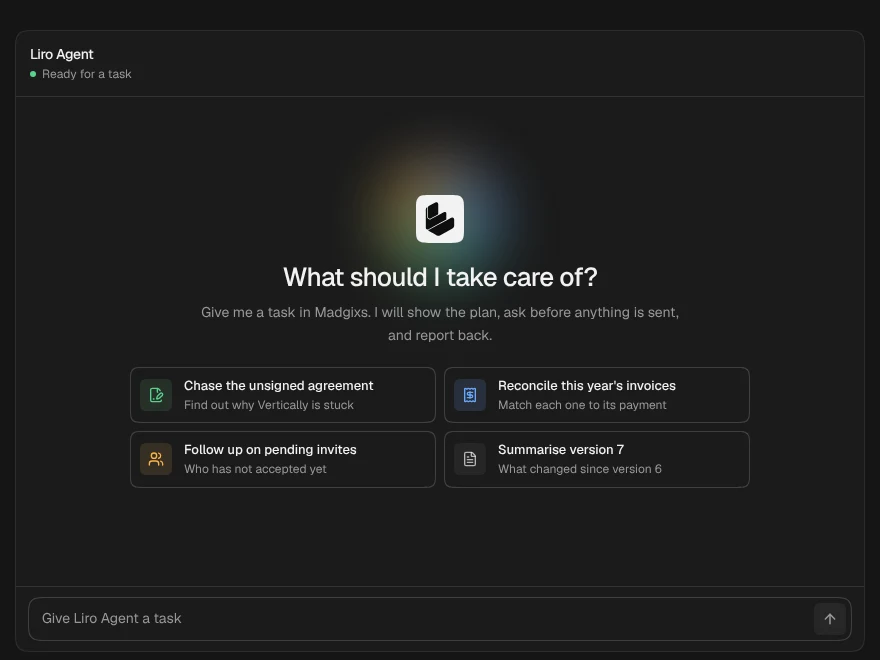
With the @liro registry in components.json and your CLI token in .env.local as LIRO_KEY (see the install docs), install Agent Workspace. It brings the parts it is built from:
npx shadcn@latest add @liro/agent-workspaceRender it without an onRun function and it plays a built-in example run, so you can lay out the page and see every state before there is a backend:
"use client";

import { AgentWorkspace } from "@/components/ui/agent-workspace";

export function AgentConsole() {
  return (
    <AgentWorkspace
      agent={{ name: "Billing agent" }}
      welcome={{
        title: "What should the agent do?",
        starters: ["Chase invoices more than 30 days overdue", "Pause dunning for Orbit until Friday"],
      }}
    />
  );
}
The window keeps the clock, follows new events until the reader scrolls up, puts the plan beside the thread when there is room and folds it above the thread when there is not.
Connect your agent
Agent Workspace takes one function, onRun. It receives the task, an abort signal and an approval(id) function, and it yields updates as the agent works. Each update is a plain object: plan, step, thought, tool (sent again with the same id when it finishes), approval, message, usage and done. Because they are plain objects, they fit any agent framework, or none.
A common setup runs the agent on your server and streams one update per line. When the agent reaches a step that needs a person, the server sends an approval update and waits; the client asks the person and posts the decision back:
"use client";

import { AgentWorkspace, type AgentRunRequest, type AgentUpdate } from "@/components/ui/agent-workspace";

/* The server writes one AgentUpdate per line as the agent works. */
async function* readUpdates(res: Response): AsyncIterable<AgentUpdate> {
  const reader = res.body!.pipeThrough(new TextDecoderStream()).getReader();
  let buffer = "";
  while (true) {
    const { done, value } = await reader.read();
    if (done) return;
    buffer += value;
    const lines = buffer.split("\n");
    buffer = lines.pop() ?? "";
    for (const line of lines) {
      if (line.trim()) yield JSON.parse(line) as AgentUpdate;
    }
  }
}

async function* run({ task, signal, approval }: AgentRunRequest): AsyncIterable<AgentUpdate> {
  const res = await fetch("/api/agent", {
    method: "POST",
    headers: { "Content-Type": "application/json" },
    body: JSON.stringify({ task }),
    signal,
  });
  if (!res.ok || !res.body) {
    throw new Error("The agent could not start. Try again in a moment.");
  }
  const runId = res.headers.get("x-run-id");

  for await (const update of readUpdates(res)) {
    yield update;

    if (update.type === "approval") {
      // The server is waiting on this decision before it acts.
      const decision = await approval(update.id);
      await fetch(`/api/agent/${runId}/approvals/${update.id}`, {
        method: "POST",
        headers: { "Content-Type": "application/json" },
        body: JSON.stringify(decision),
        signal,
      });
    }
  }
}

export function AgentConsole() {
  return <AgentWorkspace agent={{ name: "Billing agent" }} onRun={run} />;
}
Stop aborts the signal, which cancels the request. Whatever was in flight is marked as stopped, and a pending approval is declined. If onRun throws, the run ends as failed and your error message is shown, so write it for the person reading it.
Ask before acting
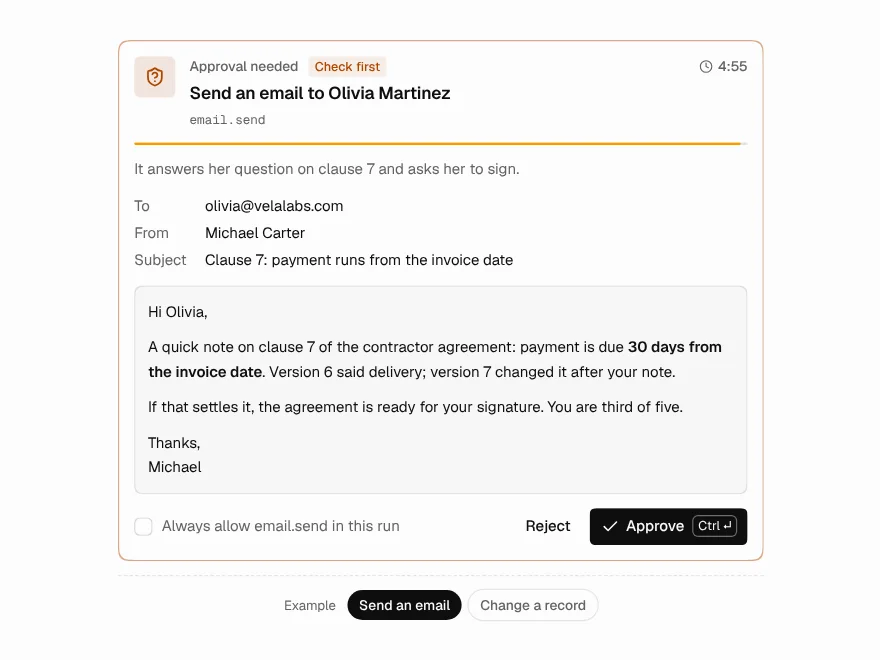
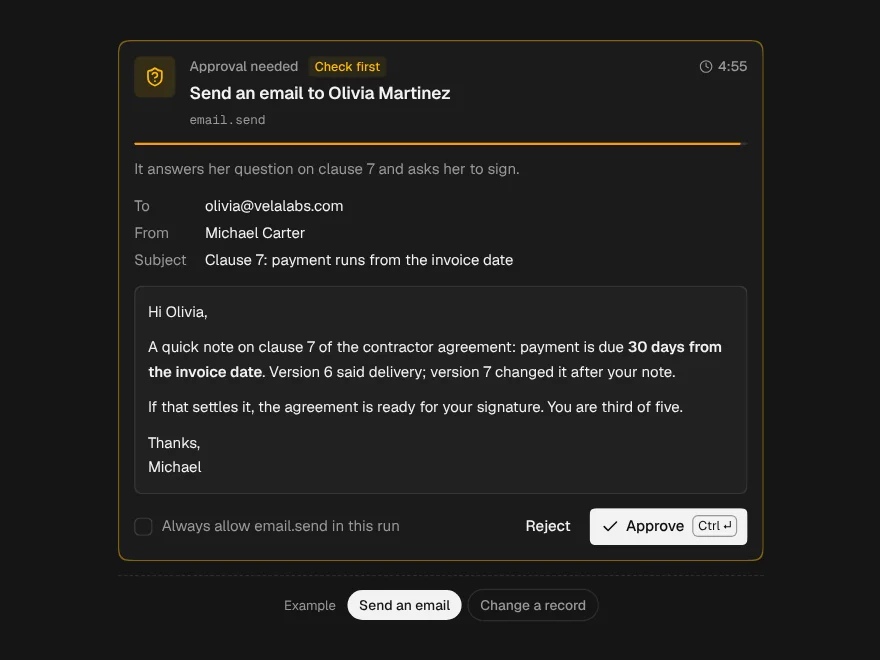
The most important part of an agent dashboard is the moment the agent stops and asks. Two things make that moment work. First, the risky step is visible in the plan before it runs, so the request is not a surprise: give the step a note. Second, the request shows the exact thing that will happen, not a summary of it:
{ type: "plan", steps: [
  { id: "find", title: "Find overdue invoices" },
  { id: "draft", title: "Draft the reminders" },
  { id: "send", title: "Send the reminders", note: "Needs approval" },
] }

{
  type: "approval",
  id: "send-reminders",
  title: "Email 2 customers about overdue invoices?",
  description: "Vertically (INV-2041, 34 days) and Orbit (INV-2057, 41 days).",
  tool: "email.send",
  risk: "medium",
  details: [
    { label: "To", value: "billing@vertically.dev, ap@orbit.io" },
    { label: "Subject", value: "Your invoice is overdue" },
  ],
}
The Approval Request that appears shows the recipients and subject, the tool it will use and how risky it is. Rejecting is as useful as approving: Reject offers reasons in one click, and the reason comes back in approval()'s result, so your agent can try another way instead of asking again. Add rememberLabel to the update and the person can also allow this kind of action for the rest of the run.
For grants that outlast one run, previews of a batch of changes and autonomy settings, see Human-in-the-Loop Approval UI for AI Agents.
Show the evidence
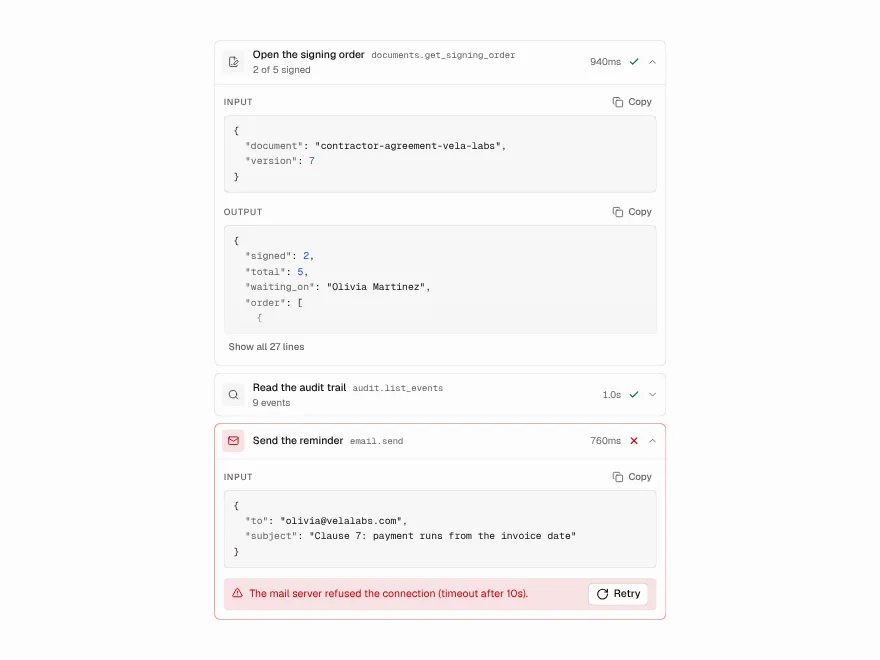
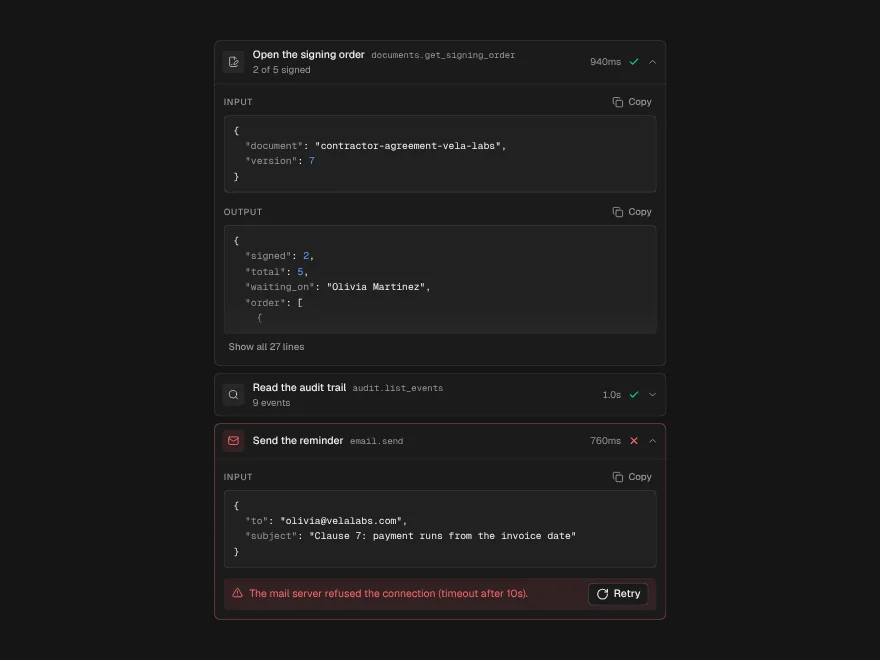
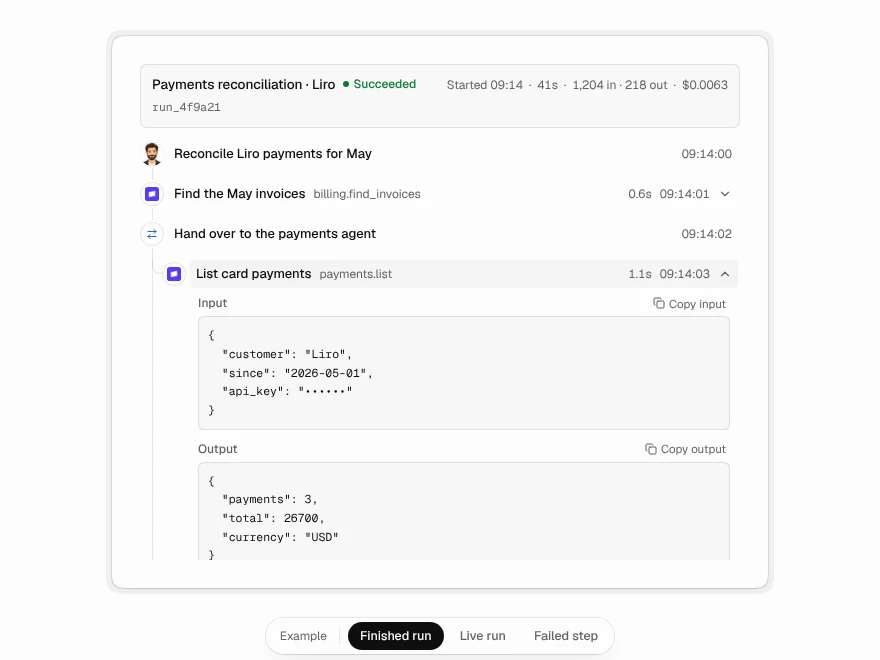
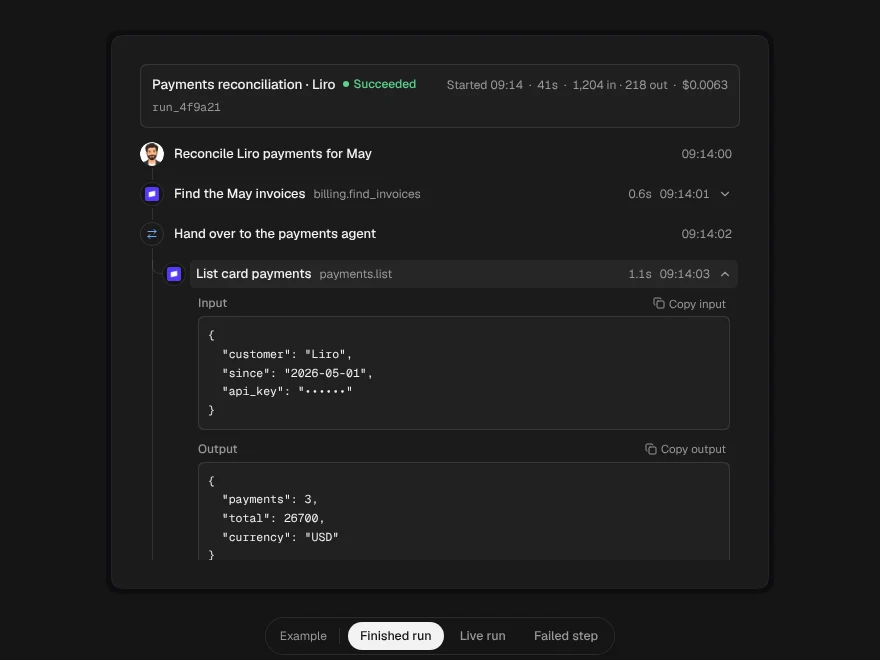
Each tool update becomes a Tool Call row: a label a person can read (“Searched invoices”), the tool's real name for whoever has to debug it, and a one-line result. Opened, it shows the input and output as JSON with Copy.
To inspect a finished run step by step, use Agent Timeline. Thoughts, tool calls, messages, approvals and errors each get their own mark on one rail, and steps called by another step are nested under it. Inputs and outputs often hold tokens or personal data, so pass a redact function; it runs before anything is shown or copied:
import { AgentTimeline, type TimelineEvent } from "@/components/ui/agent-timeline";

/* Inputs and outputs pass through this before they are shown or copied. */
function redact(value: unknown): unknown {
  return JSON.parse(
    JSON.stringify(value, (key, v) => (/token|secret|password|authorization/i.test(key) ? "••••" : v)),
  );
}

export function RunInspector({ events, live }: { events: TimelineEvent[]; live: boolean }) {
  return (
    <AgentTimeline
      events={events}
      live={live}
      redact={redact}
      onRetryEvent={(event) => fetch(`/api/agent/steps/${event.id}/retry`, { method: "POST" }).then(() => {})}
      listClassName="max-h-[520px] overflow-y-auto"
    />
  );
}
When a step fails
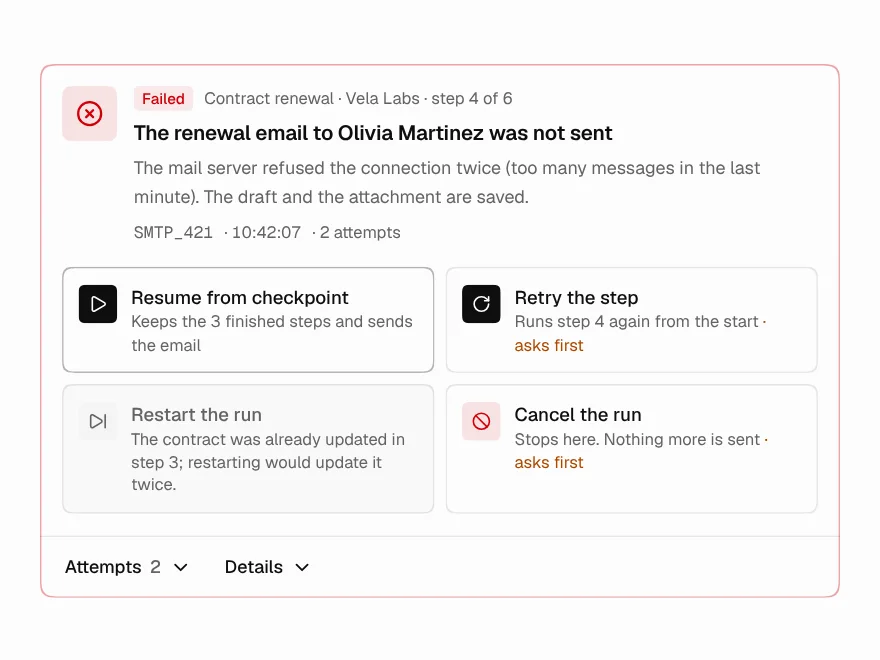
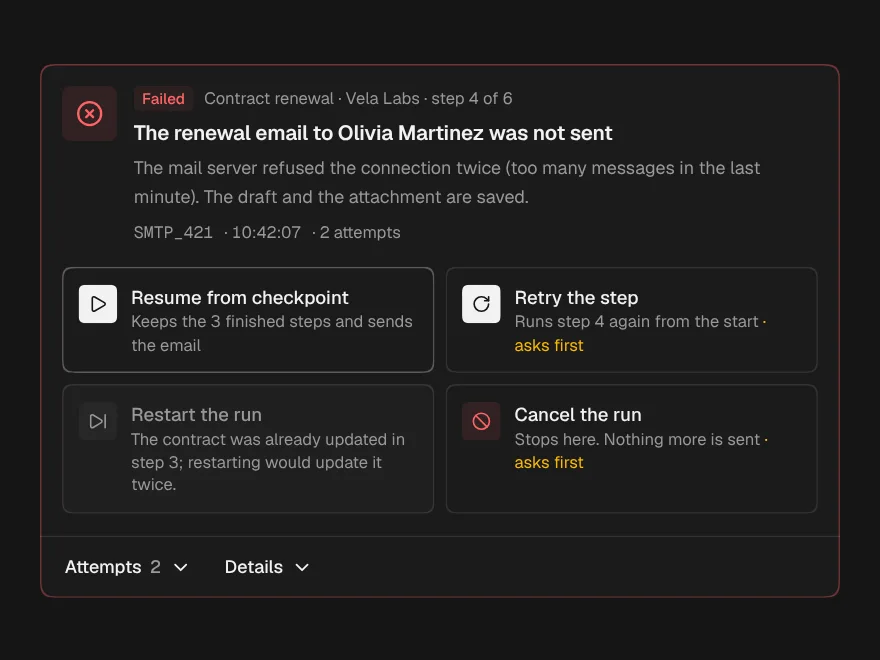
Inside Agent Workspace, a failed step says what went wrong in place, and the run ends as failed with your message. For runs that fail in the background, such as scheduled jobs and syncs, Failure Recovery lists every attempt and offers only the ways out your backend allows: resume from a checkpoint, retry, start again or cancel.
Retry is not assumed to be safe. A step that sends an email may already have sent it once, so each recovery action can carry its own warning and ask before it runs, and an action that is not allowed stays visible with the reason instead of disappearing.
End with a receipt
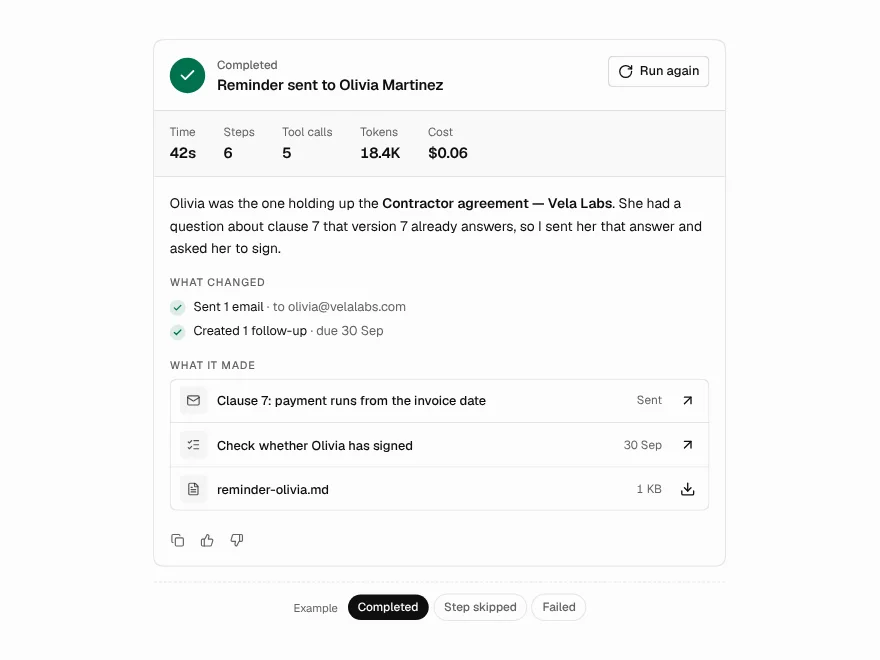
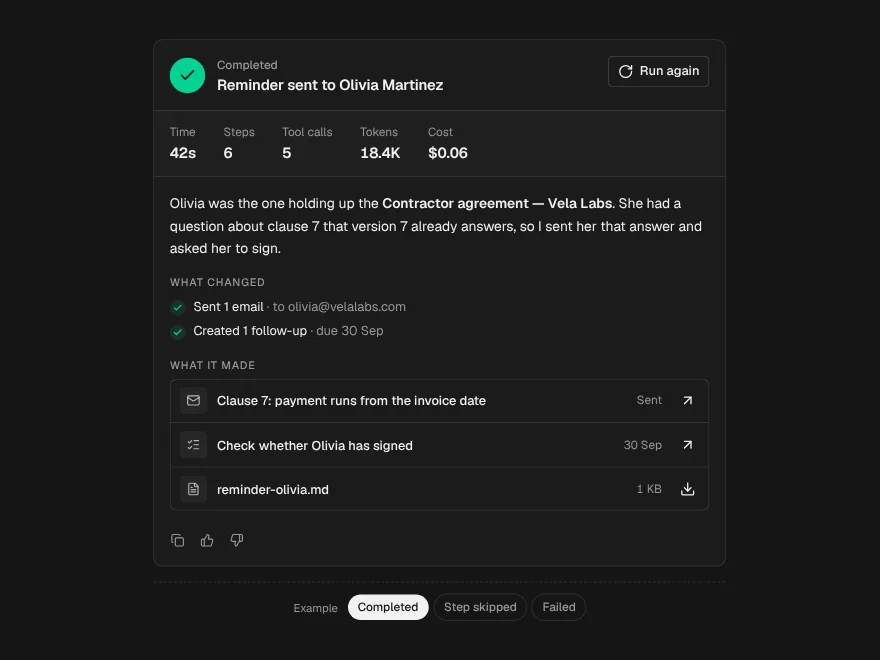
Nobody should have to read the whole thread to learn how a run went. The done update becomes a Run Summary: the outcome as a sentence, then what changed as a separate list. The summary is the agent's account; the changes are the facts a person can check without trusting the prose:
yield {
  type: "done",
  title: "Reminders sent",
  status: "partial",
  summary: "Vertically was emailed. Orbit was skipped because it paid this morning.",
  changes: [
    { label: "1 email sent to billing@vertically.dev" },
    { label: "Orbit skipped: paid on 11 Nov" },
  ],
  outputs: [{ id: "email-1", name: "Reminder to Vertically", kind: "email" }],
};
partial covers a run where some steps were skipped; there are also completed, failed and cancelled. Tokens and cost appear when you send usage updates along the way.
Your own layout from the parts
Agent Workspace is one complete screen. When your product needs a different layout, such as the plan in a sidebar or the run inside an existing page, use the parts directly. You keep the run state; each part draws its piece:
- Agent Run Status is the header: the state, a segment per step, the clock, Pause and Stop.
- Task Plan ticks steps off as they finish, and says when one fails or is skipped.
- Approval Request, Agent Timeline and Run Summary work as above.
"use client";

import { AgentRunStatus, type RunStatus } from "@/components/ui/agent-run-status";
import { TaskPlan, type PlanStep } from "@/components/ui/task-plan";
import { AgentTimeline, type TimelineEvent } from "@/components/ui/agent-timeline";
import { ApprovalRequest } from "@/components/ui/approval-request";

type Pending = { title: string; description: string; tool: string };

export function AgentRunPage({
  title, status, startedAt, steps, events, pending, onStop, onApprove, onReject,
}: {
  title: string;
  status: RunStatus;
  startedAt: number;
  steps: PlanStep[];
  events: TimelineEvent[];
  pending?: Pending;
  onStop: () => void;
  onApprove: () => Promise<void>;
  onReject: (reason?: string) => Promise<void>;
}) {
  const current = Math.max(0, steps.findIndex((s) => s.status === "running"));

  return (
    <div className="grid gap-4 lg:grid-cols-[300px_minmax(0,1fr)]">
      <AgentRunStatus
        className="lg:col-span-2"
        title={title}
        status={status}
        step={{ index: current + 1, total: steps.length, label: steps[current]?.title }}
        startedAt={startedAt}
        onStop={onStop}
      />
      <TaskPlan title="Plan" steps={steps} collapsible />
      <div className="grid content-start gap-4">
        {pending && (
          <ApprovalRequest
            title={pending.title}
            description={pending.description}
            tool={pending.tool}
            risk="medium"
            reasons={["Wrong recipients", "Not now"]}
            onApprove={onApprove}
            onReject={onReject}
          />
        )}
        <AgentTimeline events={events} live={status === "running"} listClassName="max-h-[520px] overflow-y-auto" />
      </div>
    </div>
  );
}
For a complete page laid out this way, with the plan on the left, tool calls in the middle and the output on the right, see the Agent Run screen.
Across runs: history and time
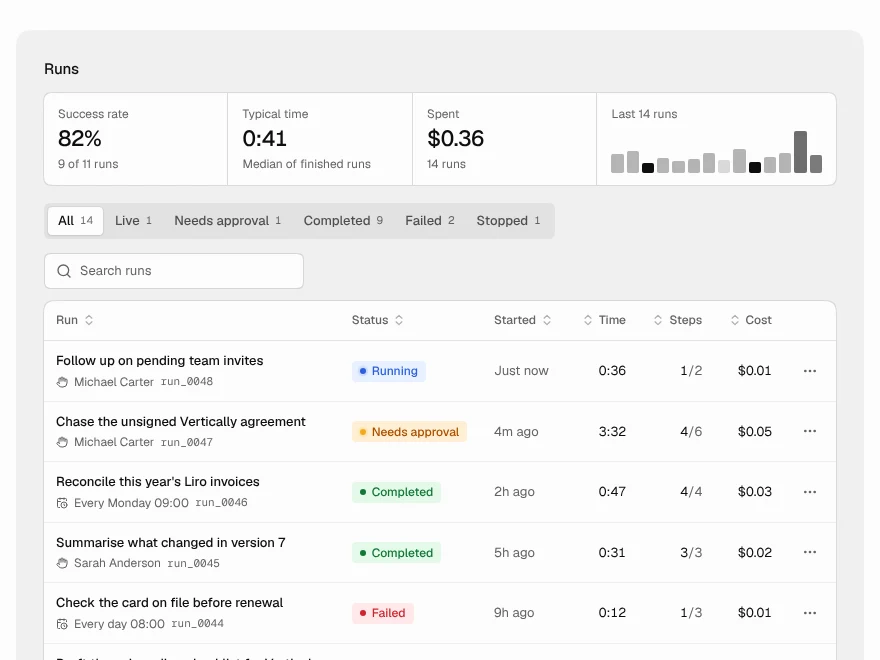
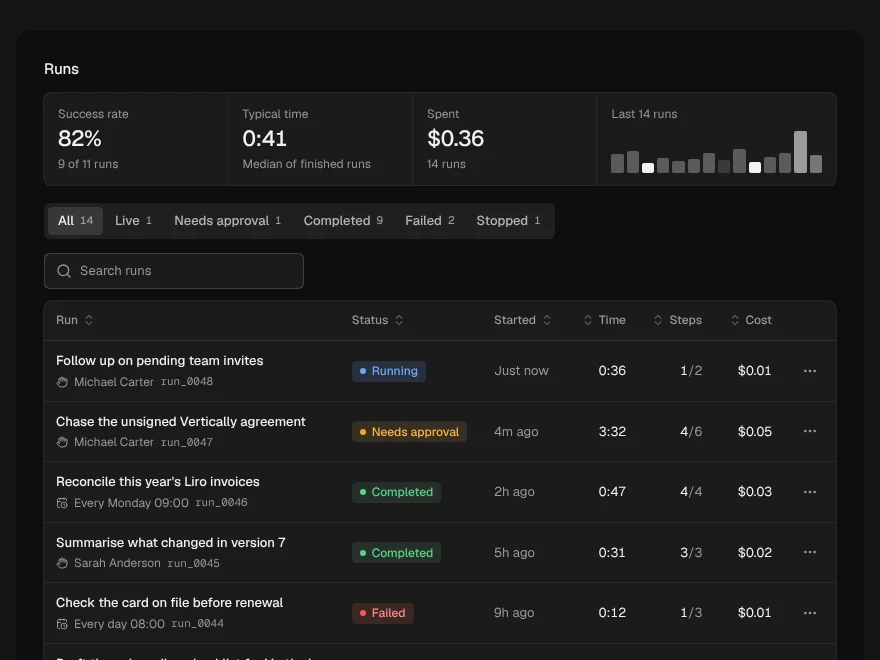
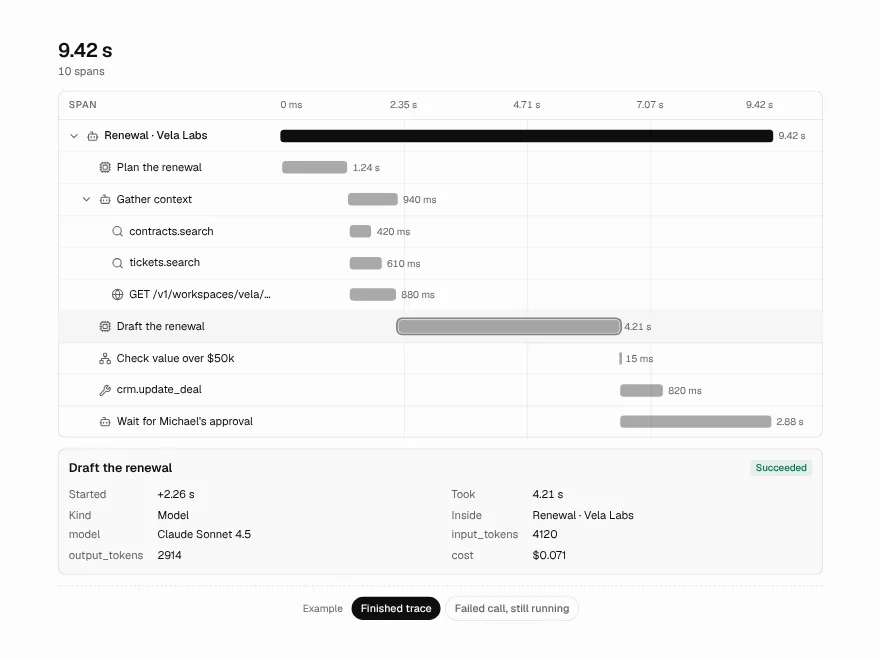
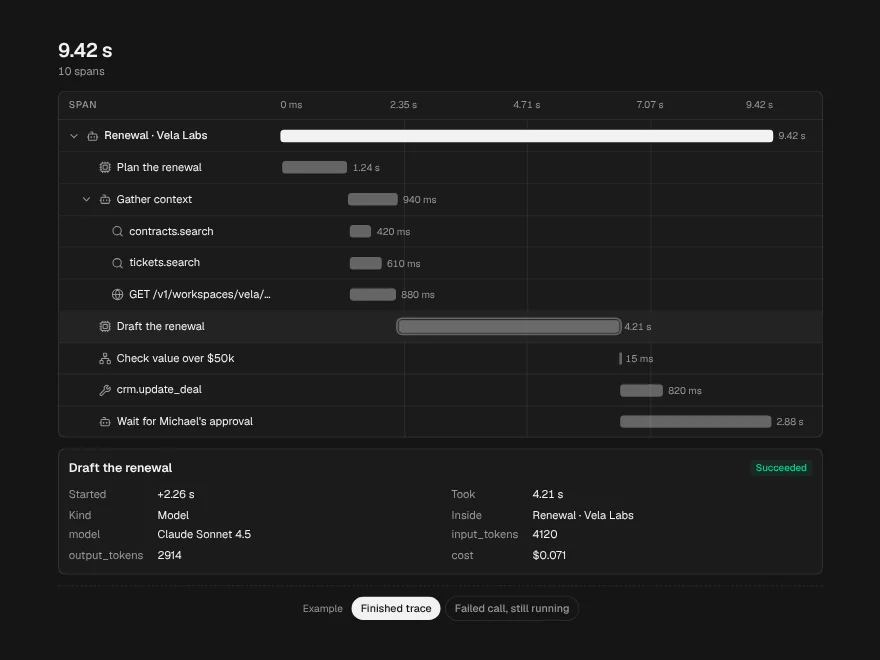
One run tells you whether a task went well. Many runs tell you whether the agent can be trusted. Run History leads with how often runs finish, how long they take and what they cost, above a strip of recent runs where a failure stands out before you read anything. Trace Waterfall shows where one run's time went, with every model call and tool call on one time axis and the slowest path marked, because speeding up anything else does not make the run finish sooner.
import { RunHistory, type AgentRun } from "@/components/ui/run-history";
import { TraceWaterfall, type TraceSpan } from "@/components/ui/trace-waterfall";

export function AgentReports({ runs, spans, open }: { runs: AgentRun[]; spans: TraceSpan[]; open: (id: string) => void }) {
  return (
    <div className="grid gap-6">
      <RunHistory runs={runs} onOpen={(run) => open(run.id)} pageSize={10} />
      <TraceWaterfall spans={spans} />
    </div>
  );
}