Data Lineage
Where an AI output came from, and which upstream data is stale or missing.
PROGet Data Lineage and 168 other Pro components with pro lifetime — Get Pro
- Category
- RAG & Evals
- Access
- ProPro · unlocked
- Source
- 509 lines · one file
- States
- 6 drawn
- Added
- 12 Oct 2026
The decision inside it
Staleness travels
A stale page makes every chunk and answer built on it suspect, so the reach of each stale or missing source is worked out and shown, not just the source itself.
When to use it
Use Data Lineage to show where a piece of data or an AI output came from: sources, documents, chunks, transformations and outputs as a graph, with stale or missing steps marked and trace upstream or downstream.
Installation
How you get it
Paste this into Claude Code, Cursor, Codex or any coding agent. It installs the file and uses it as it is, instead of writing a new one.
Use Liro's Data Lineage for this.
Install it: npx shadcn@latest add @liro/data-lineage
(the @liro registry is set up in components.json, with LIRO_KEY in .env.local)
Import it from @/components/ui/data-lineage.
Do not rewrite or restyle it. Pass my data through its props
and keep its built-in states.
For the full brief with every prop and the mistakes assistants usually make, use Copy prompt above. Pro components install through the @liro registry with your CLI token: see the Namespaced tab.
Usage
import { DataLineage } from "@/components/ui/data-lineage";

export function Lineage() {
  return (
    <DataLineage
      nodes={[
        { id: "src", label: "Refund policy.pdf", kind: "source", status: "current" },
        { id: "chunk", label: "Chunk 12", kind: "chunk" },
        { id: "answer", label: "Answer #482", kind: "model_output" },
      ]}
      edges={[
        { id: "e1", source: "src", target: "chunk", relation: "derived_from" },
        { id: "e2", source: "chunk", target: "answer", relation: "retrieved_from" },
      ]}
      height={320}
    />
  );
}
API reference
“Copy prompt” above puts a full brief on your clipboard, install command, dependencies, props, and the mistakes an assistant usually makes with this component.
Props
Read from the component’s own TypeScript interface when the site is built, so this table cannot drift from the file you install.
| Type | Notes | ||
|---|---|---|---|
nodes | LineageNode[] | Yes | – |
edges | LineageEdge[] | Yes | – |
selectedNodeId | string | null | No | – |
defaultSelectedNodeId | string | null | No | – |
onNodeSelect | (node: LineageNode | null) => void | No | – |
onOpenResource | (node: LineageNode) => void | No | Adds "Open" to the details. |
onTraceUpstream | (node: LineageNode) => void | No | – |
onTraceDownstream | (node: LineageNode) => void | No | – |
layout | "graph" | "list" | No | `graph` or `list`. |
height | number | No | Height of the canvas. Default 360. |
Dependencies
npm packages
clsxframer-motionlucide-reacttailwind-mergeLiro foundations, installed alongside it
liro-themebadgebuttonsegmented-controlstateStates
All of them are drawn by the component. None is left for you to design.
- Node selected
- Traced upstream
- Traced downstream
- Stale
- Missing
- List view
Accessibility
- Keyboard reachable throughout, in visual order
- Focus trapped in overlays, Escape closes them
- Focus returns to whatever opened it
- Live regions announce what changed, not that something did
- Honours prefers-reduced-motion
Responsive behavior
- Sizes to its container, not the viewport
- Usable from 320px up
- Pointer-based interaction, so trackpad and touch both work
- No hover-only affordances
More like Data Lineage
All RAG & Evals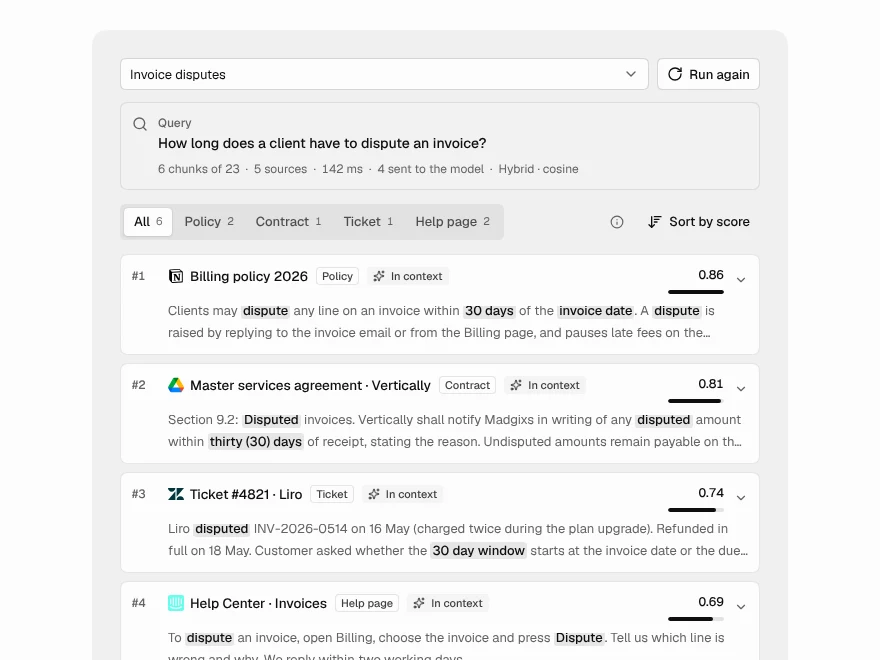 Pro
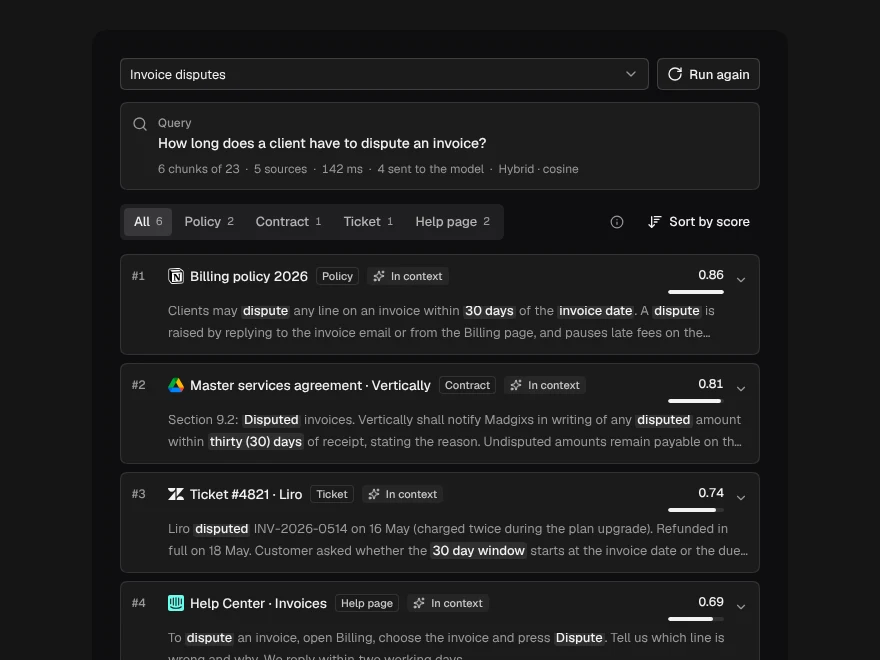
Retrieval Inspector
Inspect the chunks a RAG retriever found.
 Pro
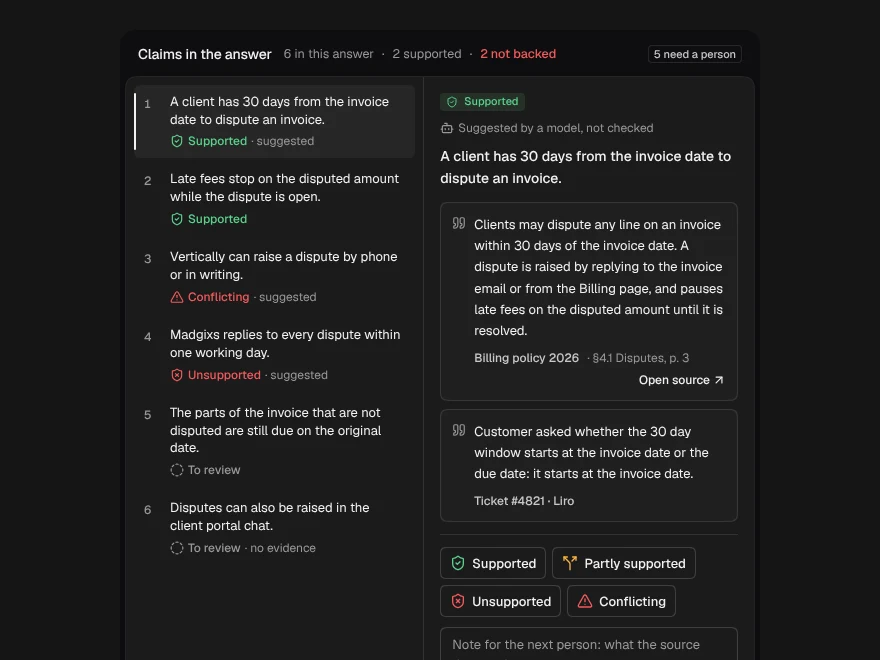
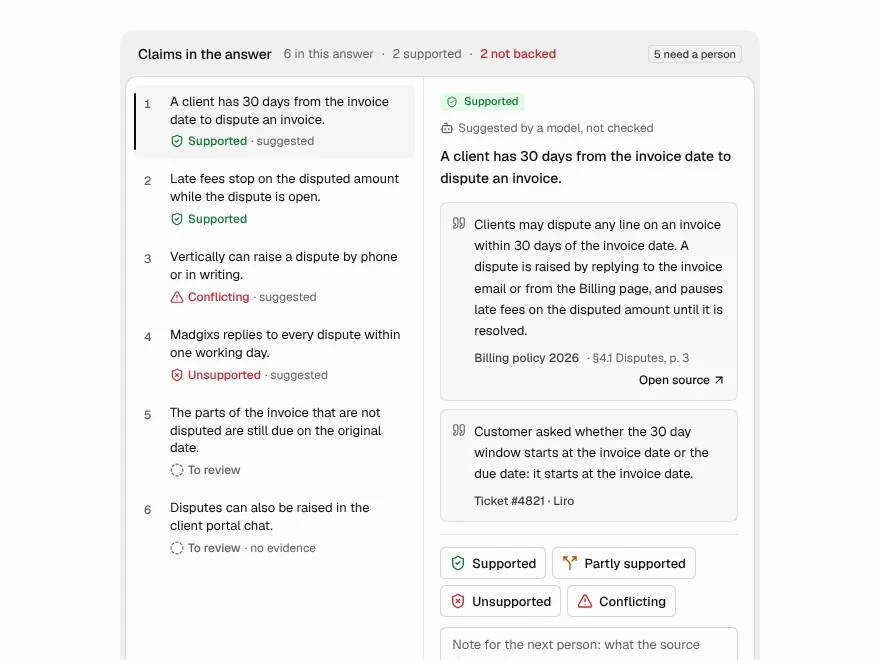
Citation Verification
Check each AI claim against its source.
 Pro
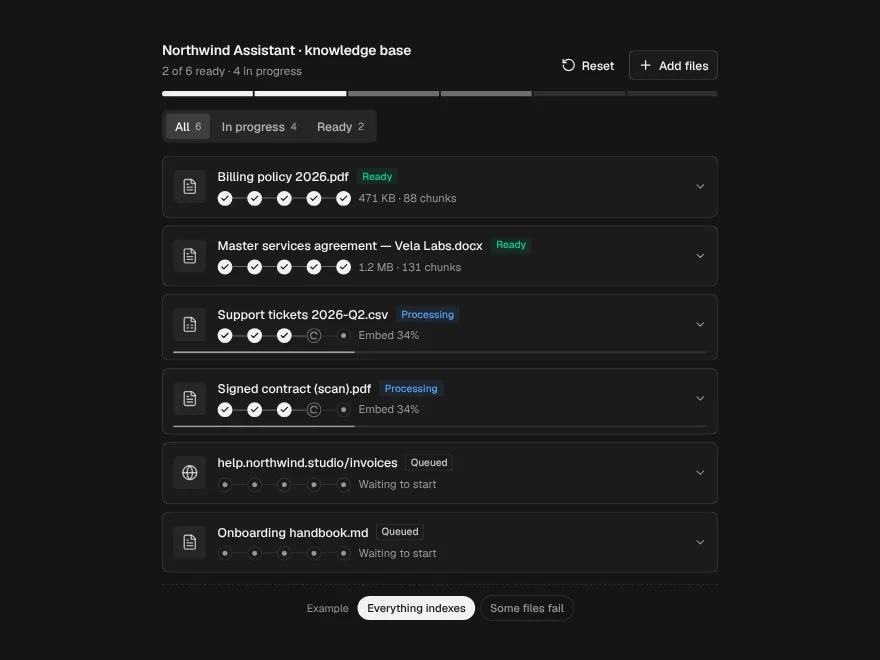
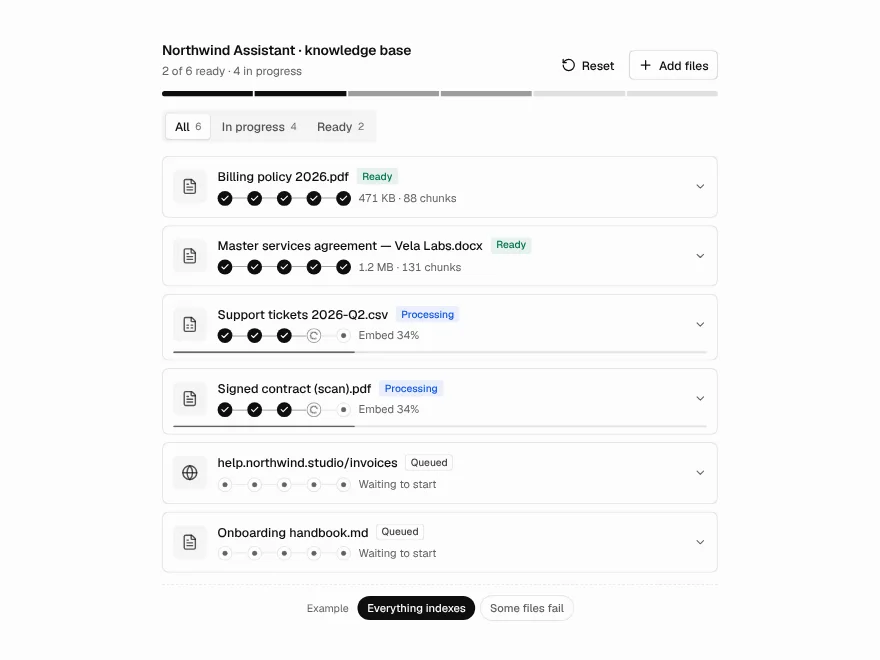
Ingestion Pipeline
Track files through a RAG ingestion pipeline.
 Pro
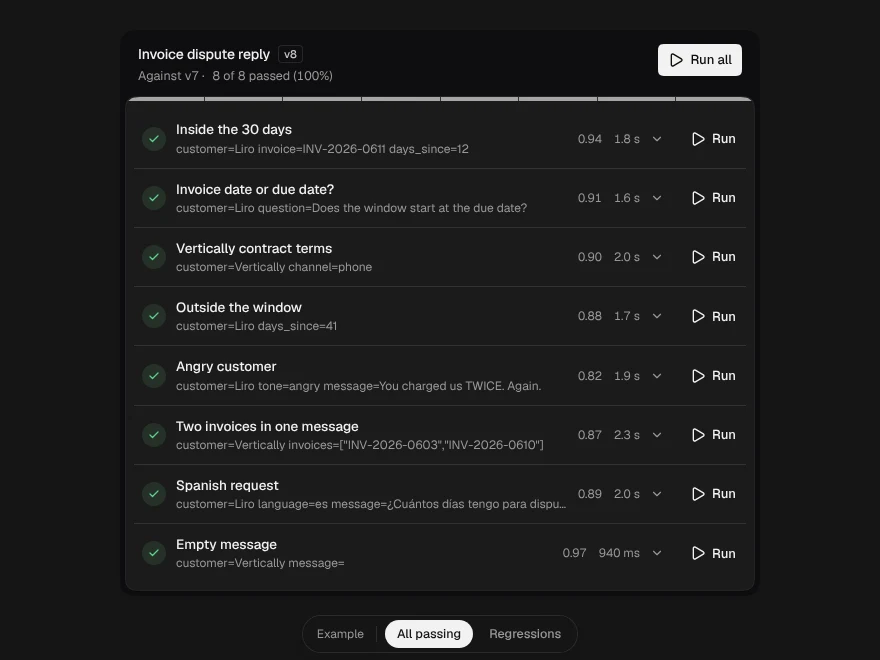
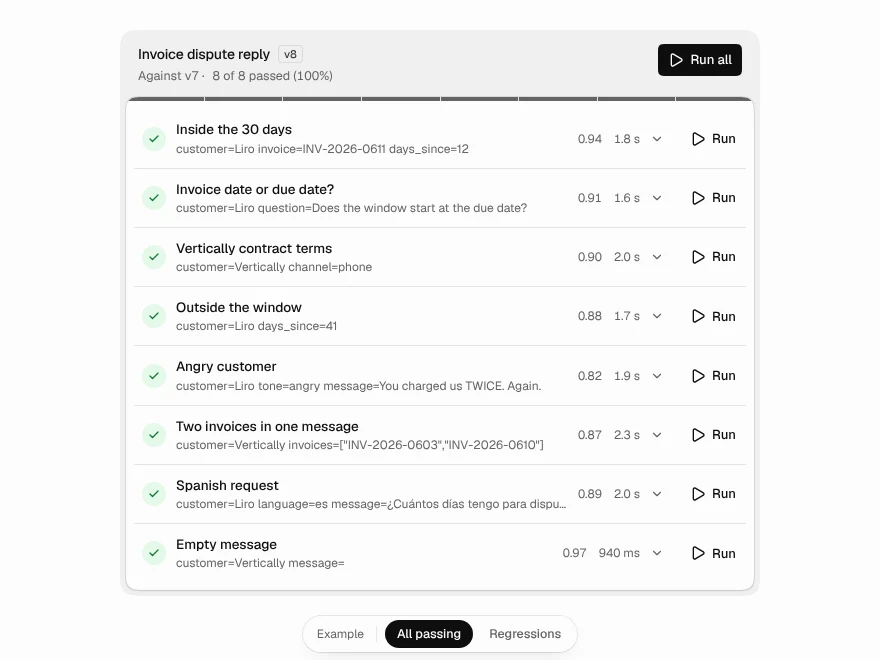
Prompt Test Matrix
Test a prompt against cases and catch regressions.
 Pro
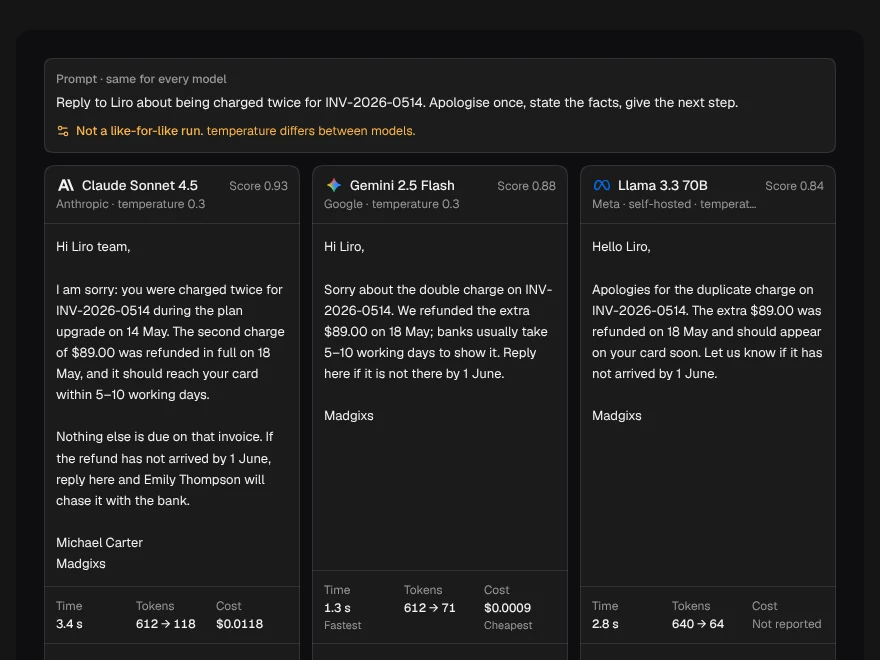
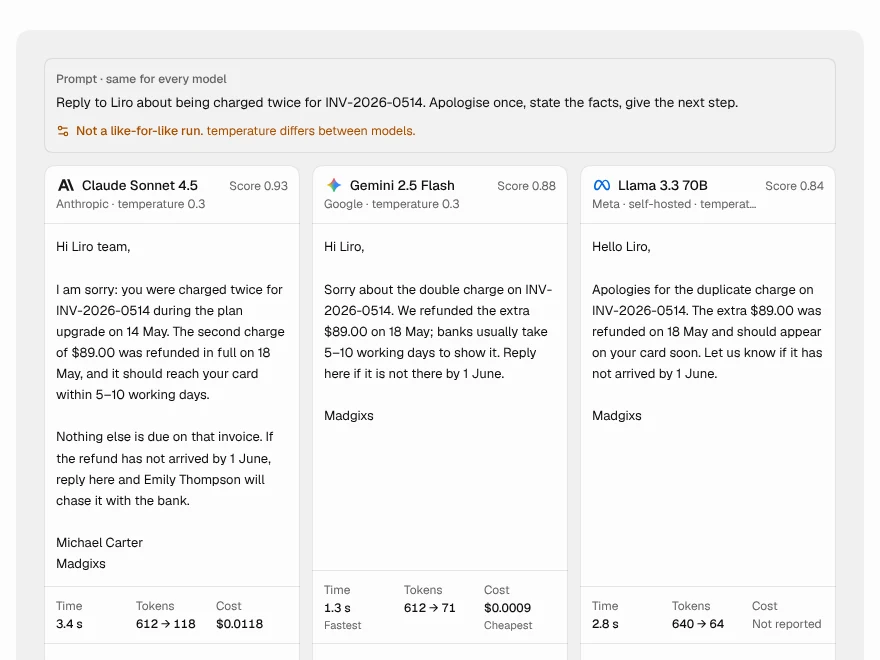
Model Comparison
Compare answers from several AI models side by side.
 Pro
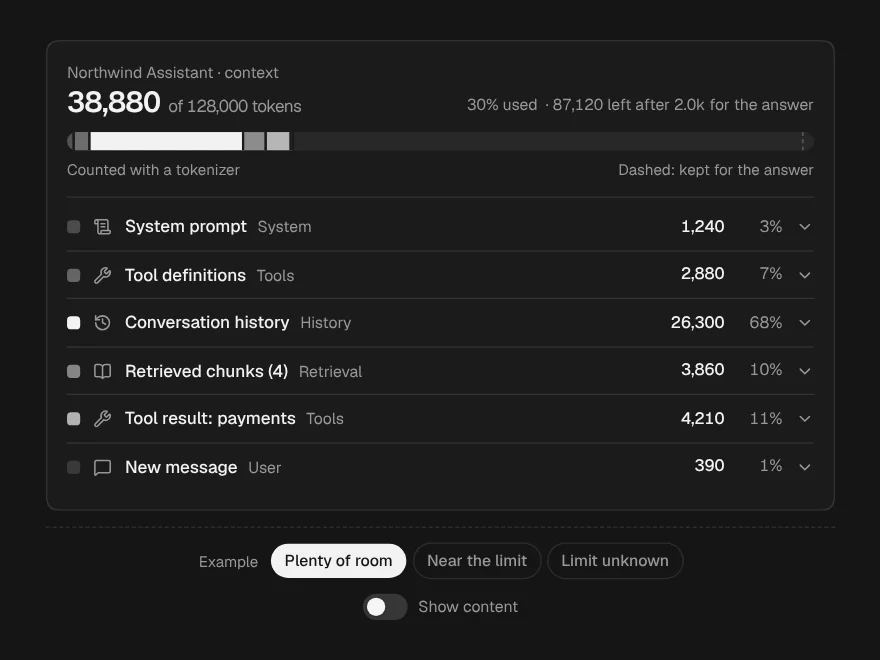
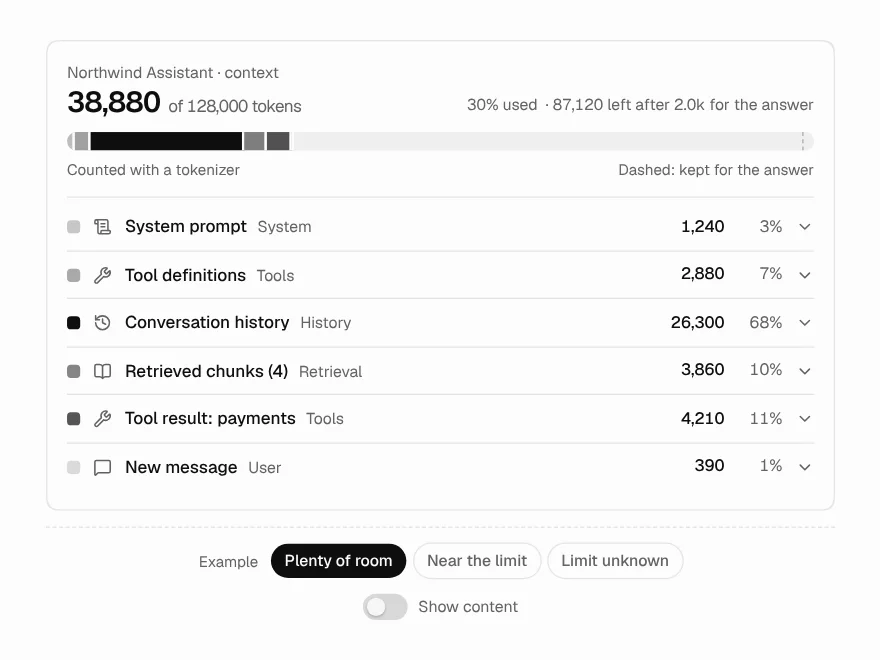
Context Window
Breakdown of what fills an LLM context window.