Two-Factor Setup
Turn on an authenticator app in three steps: scan, verify a code, save the backup codes.
PROGet Two-Factor Setup and 168 other Pro components with pro lifetime — Get Pro
- Category
- Auth
- Access
- ProPro · unlocked
- Source
- 253 lines · one file
- States
- 6 drawn
- Added
- 3 Nov 2026
The decision inside it
It turns on only after a code works and the codes are saved
Turning two-factor on before a code from the app has verified, or before the backup codes are kept, is how people lock themselves out. Turn on stays disabled until both are true.
When to use it
Use Two-Factor Setup where people turn on an authenticator app for their account. For entering a code at sign-in use OTP Input; to see signed-in devices use Sessions & Devices.
Installation
How you get it
Paste this into Claude Code, Cursor, Codex or any coding agent. It installs the file and uses it as it is, instead of writing a new one.
Use Liro's Two-Factor Setup for this.
Install it: npx shadcn@latest add @liro/two-factor-setup
(the @liro registry is set up in components.json, with LIRO_KEY in .env.local)
Import it from @/components/ui/two-factor-setup.
Do not rewrite or restyle it. Pass my data through its props
and keep its built-in states.
For the full brief with every prop and the mistakes assistants usually make, use Copy prompt above. Pro components install through the @liro registry with your CLI token: see the Namespaced tab.
Usage
import { TwoFactorSetup } from "@/components/ui/two-factor-setup";

export function TwoFactor({ setup, api }: {
  setup: { qrUrl: string; secret: string; backupCodes: string[] };
  api: { verify: (code: string) => Promise<boolean>; enable: () => Promise<void> };
}) {
  return (
    <TwoFactorSetup
      qr={<img src={setup.qrUrl} alt="" />}
      secret={setup.secret}
      backupCodes={setup.backupCodes}
      onVerify={api.verify}
      onEnable={api.enable}
    />
  );
}
API reference
“Copy prompt” above puts a full brief on your clipboard, install command, dependencies, props, and the mistakes an assistant usually makes with this component.
Props
Read from the component’s own TypeScript interface when the site is built, so this table cannot drift from the file you install.
| Type | Notes | ||
|---|---|---|---|
qr | React.ReactNode | Yes | The QR code for the authenticator app, rendered by you (an <img> or <svg>). |
secret | string | Yes | The same secret as text, for typing in by hand. |
backupCodes | string[] | Yes | One-time backup codes. |
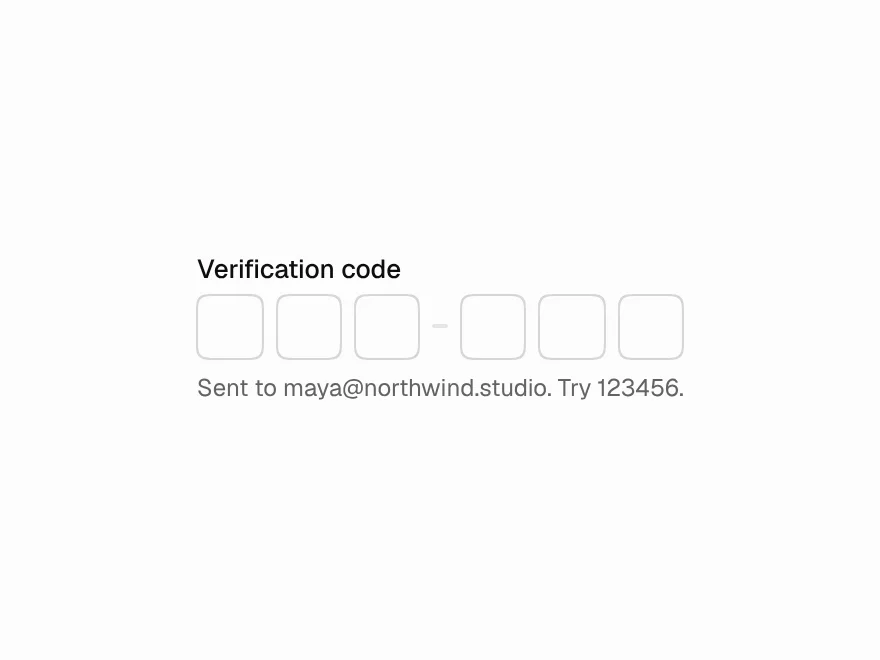
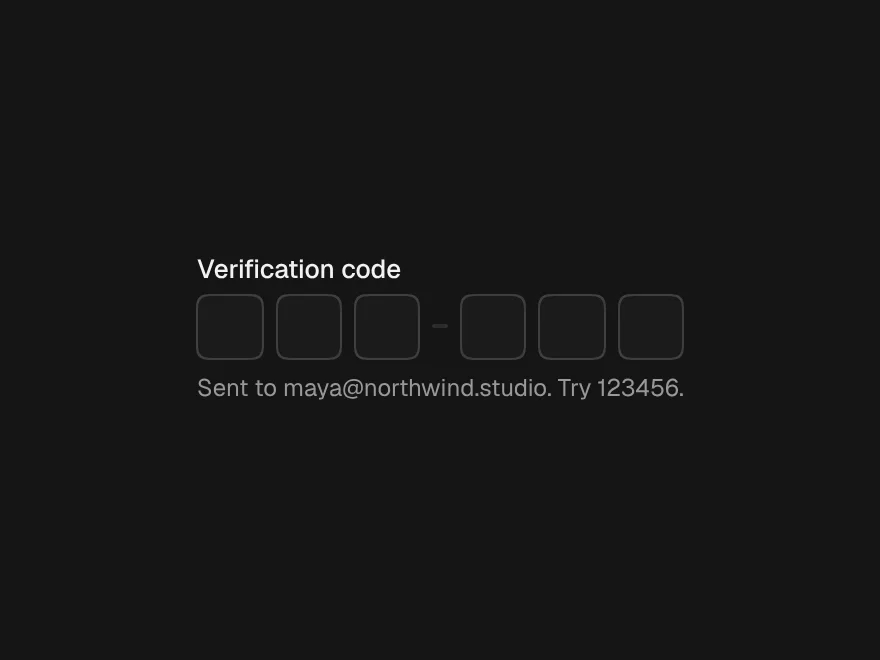
onVerify | (code: string) => boolean | void | Promise<boolean | void> | Yes | Checks a six-digit code. Reject (or resolve false) when it's wrong. |
onEnable | () => void | Promise<void> | Yes | Turns two-factor on. May return a promise. |
enabled | boolean | No | Already on: shows the finished state. |
account | string | No | – |
look | Look | No | – |
Dependencies
npm packages
clsxframer-motionlucide-reacttailwind-mergeLiro foundations, installed alongside it
liro-themebuttonotp-inputStates
All of them are drawn by the component. None is left for you to design.
- Scan
- Type the key
- Verify
- Wrong code
- Save codes
- On
Accessibility
- Keyboard reachable throughout, in visual order
- Focus trapped in overlays, Escape closes them
- Focus returns to whatever opened it
- Live regions announce what changed, not that something did
- Honours prefers-reduced-motion
Responsive behavior
- Sizes to its container, not the viewport
- Usable from 320px up
- Pointer-based interaction, so trackpad and touch both work
- No hover-only affordances